Workzones
Workzones track where work is planned and where resources spend time. Link them to your project schedules to compare planned work with actual activity.
A zone represents one physical place. It can have several types, including work, exclusion and alert types together. The same boundary can therefore support work tracking and safety alerts without creating duplicate zones.
Note
For best results, map out as many areas as possible. Creating zones for stockpiles, laydowns, and access points can help SMART give you better insights into how people & plant move around your project.
Creating Workzones
Use Create Zone in the drawing map tools to draw an area, then complete the zone dialog. Enter a name, select at least one work type, and choose a parent zone if needed. Additional exclusion or alert types can share the same zone. Save the completed zone.
Editing Workzones
Select a zone in Zones Details and click Edit Zone, or use its row menu’s Edit details action. Changes to the shared boundary or name apply in every zone view where that place appears.
Uploading Workzones
If you have a spatially referenced file or CAD diagram, select Upload in Zones Details, then Upload work zones.
Once the file has been uploaded, select the areas you would like to import and click ‘Create’.
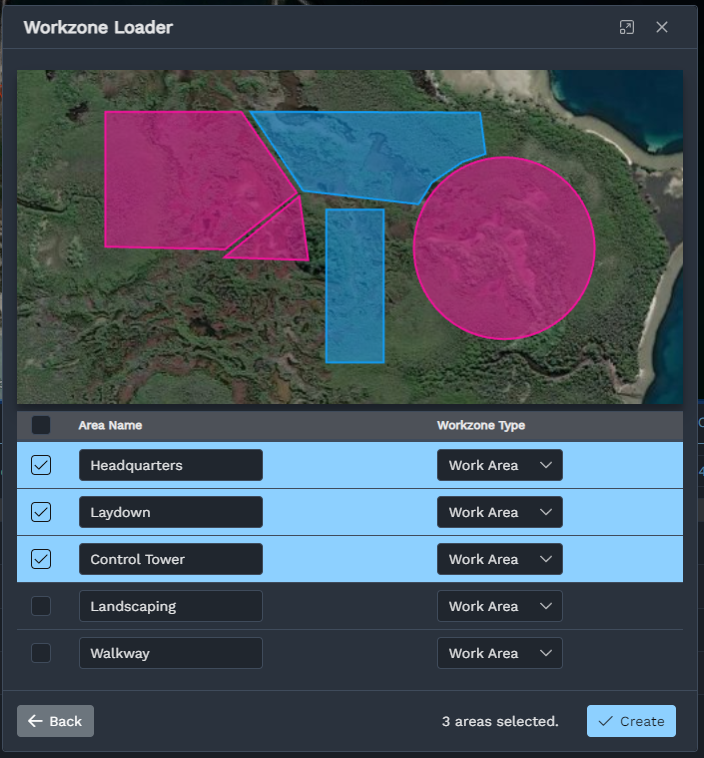
The Workzone File Uploader is currently in Beta. Some CAD files might have difficulty importing into SMART. If you encounter problems, please contact us for support.
Activity Assignment
Schedule links use P6 activity and resource-assignment codes. After a schedule upload, review the SMART Breakdown Structure mappings and select the work zone for each code. Tasks carrying those codes are associated with the linked zone. The work-zone table shows assigned task counts and planned hours from those links.
Choosing a parent zone organizes the places; it does not create schedule links for its children. A zone linked to a schedule must retain a work type until its schedule assignments are removed.
Workzone Types
Open Zone Types in Resource Management to add or edit types. Work, exclusion and alert types each have their own category tree. Select a parent type when adding a more specific classification. These type categories are separate from the parent zones used to organize physical places.
You can rename custom types, change their parent within the same category, adjust work-type colours and choose whether each type is included in analytics. A zone is included when any of its selected types is enabled for analytics. That setting is checked on the selected types, so disabling a parent type does not automatically disable its children.
Note
For prohibited areas such as safety zones or heritage areas, add an exclusion type and configure breach alert rules. A work type on its own does not configure those alerts.
Time-Phased Workzones
Workzones can be set to time-phased - only active during a specified time window.
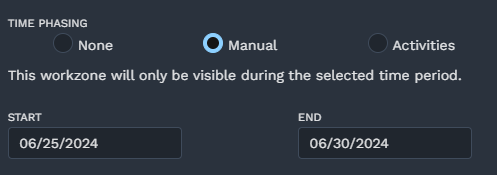
You can pick between the following options when editing a workzone:
None: This workzone will always be displayed on the map.
Manual: This workzone will only be displayed on the map during the range you specify.
Activities: This workzone will only be active during the range of assigned activities. This workzone will only show up after the first task commences and before the final task finishes.
Nested Workzones
Use parent zones to organize broad project regions and individual work areas. Work, exclusion and alert zones all offer a parent selection in their editors, and a parent can belong to a different category from its child.
Choose the parent explicitly when creating or editing a zone. Drawing one shape inside another does not create that relationship, and selecting a parent does not change either boundary or copy alert rules.
Click on the arrows next to a zone to expand it and see child zones.
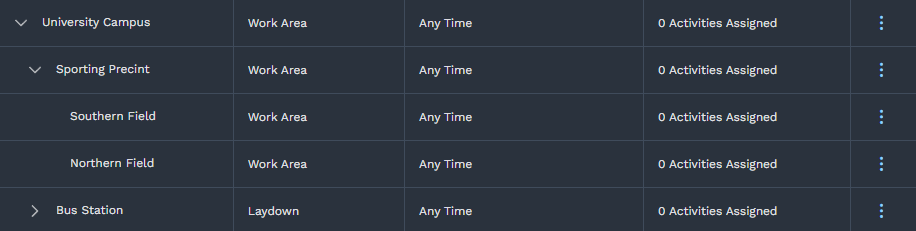
The work-zone table can show this parent tree or group zones by type. Alert-zone lists remain flat, and exclusion-zone lists group by type rather than displaying the physical parent tree. The map shows all enabled work zones; use layer and type controls to choose what is visible.
Time in Zones
The Time in zones report measures time inside each physical zone. Overlapping zones each receive their own time: ten minutes inside two zones appears as ten minutes for each, while the overall resource total remains ten minutes. Missing telemetry is shown as unavailable rather than time outside zones.
Schedule work attribution uses a separate calculation that favors smaller work areas over larger containing areas. Its figures can therefore differ from the physical occupancy report.